

RocketSim 15.0.0 introduces a unique VoiceOver Navigator and a post editor for screenshots and videos. Combined with the option to record videos in 120 frames per second (FPS), it now offers the best recording capabilities in the market of Xcode Simulator developer tooling.
These are just the major changes that landed in 15.0.0: there are many more small improvements that increase developer productivity. Combine it with my recent Agent Skill for Xcode Build Performance optimization and chances are high you’ll be much more productive soon. And that’s not all: I’m also introducing a brand new student discount offering (more on that later). Let’s dive in!

Post Editor for Simulator Screenshots & Videos
A video tells more than a thousand words, isn’t it?
You could already create high quality screenshots and videos in earlier versions of RocketSim. These could include touches, audio recording (both system and from your app), device bezels, a custom background, and the classic 9:41 time set properly.
In this latest release, you’re now also able to post-edit your captures. Change the aspect ratio, update the touch point color, switch to a different device bezel: all while your video is playing live.
As the demo shows, you can directly see the changes being applied, which is a game-changer when you love pixel-perfect captures.
FREE 5-Day Email Course: The Swift Concurrency Playbook
A FREE 5-day email course revealing the 5 biggest mistakes iOS developers make with with async/await that lead to App Store rejections And migration projects taking months instead of days (even if you've been writing Swift for years)
VoiceOver Navigator: Testing Your App’s Accessibility Support
The second big feature is a brand new VoiceOver Navigator which helps you test your app’s VoiceOver accessibility support. Instead of having to launch your app on a physical device, you can now use the keyboard arrows to navigate as if you’re using VoiceOver.
Selected elements will show up with a rectangle around its bounds, pressing the enter key will send a touch event to make your app respond accordingly. You can also change the rotor, as if you’re changing it during VoiceOver.
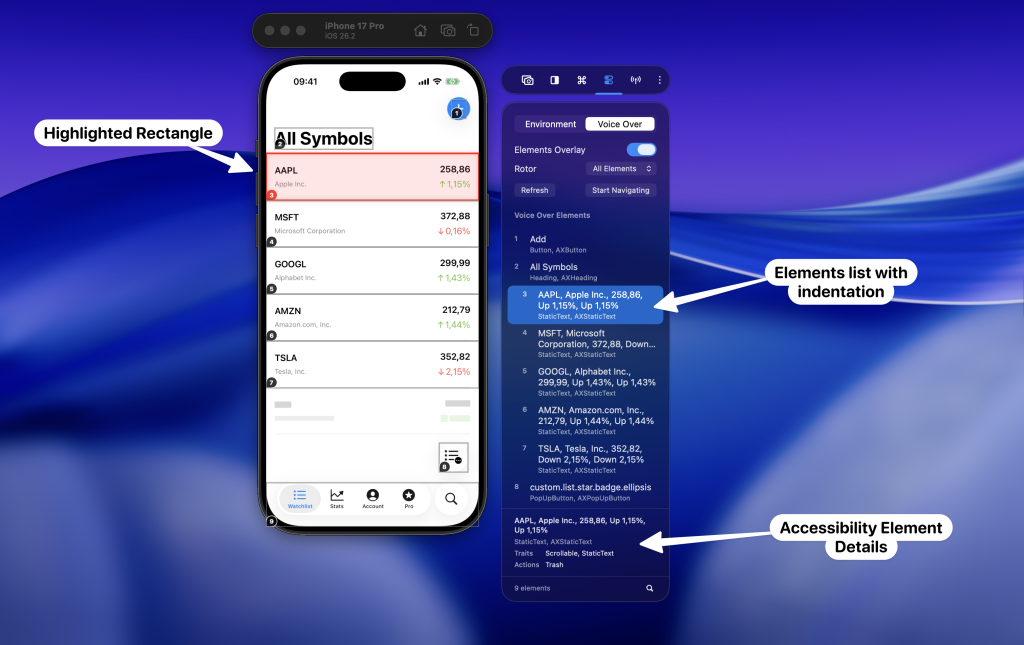
The elements list applies indentation based on the hierarchy and the footer shows extra details for the selected element. As you can see in the screenshot above, the selected element shows up with a red rectangle around it.
Liquid Glass Accessibility Testing
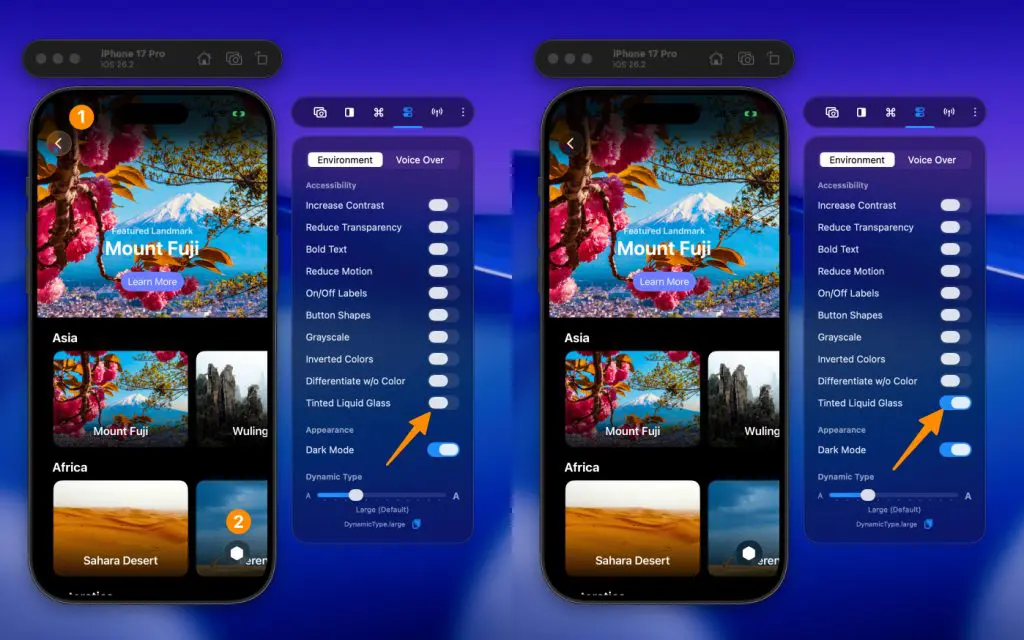
When Liquid Glass got announced, many users complained about its accessibility support. Later on, iOS introduced a new Tinted Liquid Glass mode that aimed to improve contrast, but the reality is that it doesn’t always work out of the box.
Up until now, you would have to test your app’s Liquid Glass tinted support on a physical device, but you can now also make use of RocketSim’s accessibility toggles. In the above screenshot, you can see a small detail difference, but it can highly impact the usability of your app for those users with accessibility requirements.
A new place for Network Monitoring & Network Speed Control
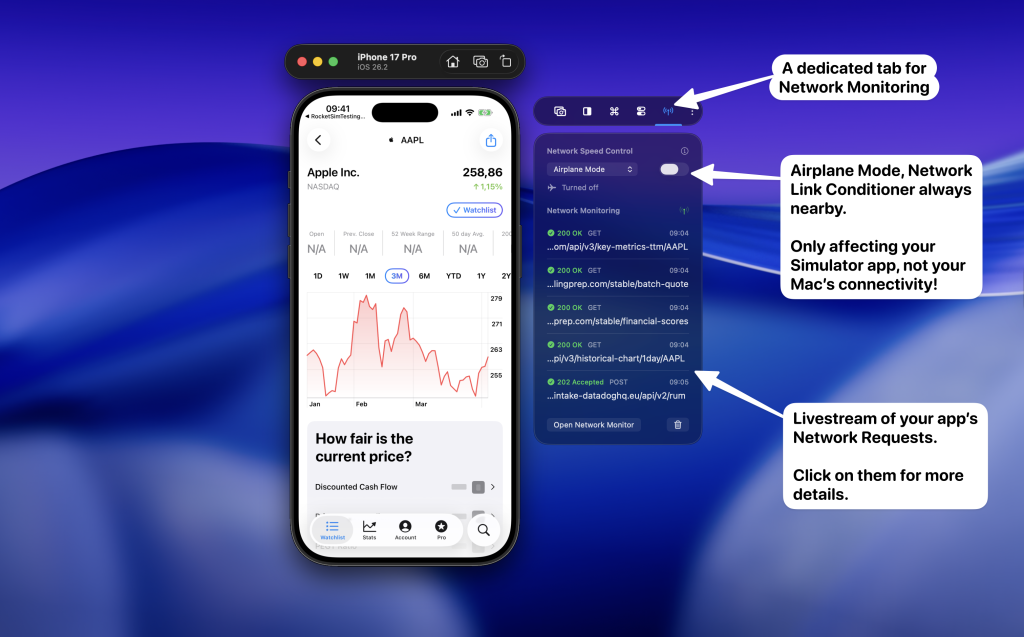
Due to its popularity, I decided to move the Network Monitor and Network Speed Control into a dedicated tab. This makes the feature easier to discover, and reachable with a single click.
For those new to these features:
- Network Monitor
High performant network inspector that always runs in the background. Captures all your app’s network requests and allows inspection of JSON responses, headers, and more. Read more in Inspect network traffic using the Xcode Simulator. - Network Speed Control
Simulate bad networking conditions like 3G or 100% loss. Enable Airplane mode to completely disable networking. Only affects your Simulator app, your Mac remains fast. Read more in Network Link Conditioner: Simulating Slow Networking
Supporting Students
Last but not least, I’m extremely proud to introduce you to a new students support program. I remember my times as a student: I wanted to use professional tools like Adobe Photoshop and such (yes, I used to be a designer), but I couldn’t afford it. It was their students program that allowed me to get my hands dirty with professional tools early.
That’s why I strongly believe I should return the favor. I want to support those that are just getting started, boosting their early careers. If you’re a student, you can now sign up for RocketSim Pro at rocketsim.app/student.
How to Install RocketSim
I truly hope you can’t wait to get your hands on this latest release of RocketSim. You can get it from the Mac App Store or request an enterprice license to get it distributed outside of the App Store.
Enjoy!