

AI-Powered Xcode Simulator Automation is becoming the standard increasingly now that we develop apps using Agents on a daily basis. The more your agents can do autonomously, the higher your productivity will be. At the same time, context is limited and token-usage should be monitored.
That’s why I decided to develop a new way to control Xcode’s Simulator using an optimized CLI designed for Agents. In our internal research, RocketSim’s CLI completed the same agent workflows about 19% faster, avoided wrong taps entirely, and used about 63% fewer estimated tokens than a popular alternative. Let’s dive in!
What is AI-Power Xcode Simulator Automation?
AI-powered Xcode Simulator automation lets you ask an agent to inspect and interact with your app in the Simulator, much like a developer would: read what is on screen, tap buttons, type into fields, scroll lists, wait for state changes, and verify the result. Instead of writing brittle scripts for every flow, you describe the goal in natural language, and the agent uses tools like RocketSim’s CLI to turn that goal into reliable Simulator actions.
For iOS developers, this opens the door to faster debugging, exploratory testing, and repeatable UI checks. You can ask an agent to reproduce a bug, complete an onboarding flow, test a deep link, verify a paywall, or navigate through Settings while keeping the full interaction grounded in the actual Simulator state.
How can I let my Agent control Xcode’s Simulator?
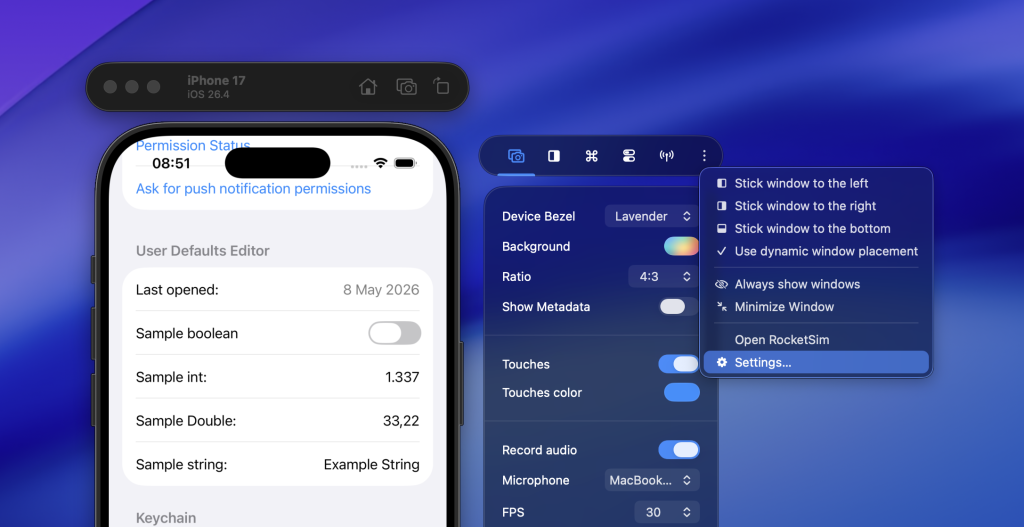
To get started, you’ll first need to download RocketSim from the App Store. Once installed, complete the onboarding and navigate to the settings page using Menubar → Settings or by using the more button in the side window:
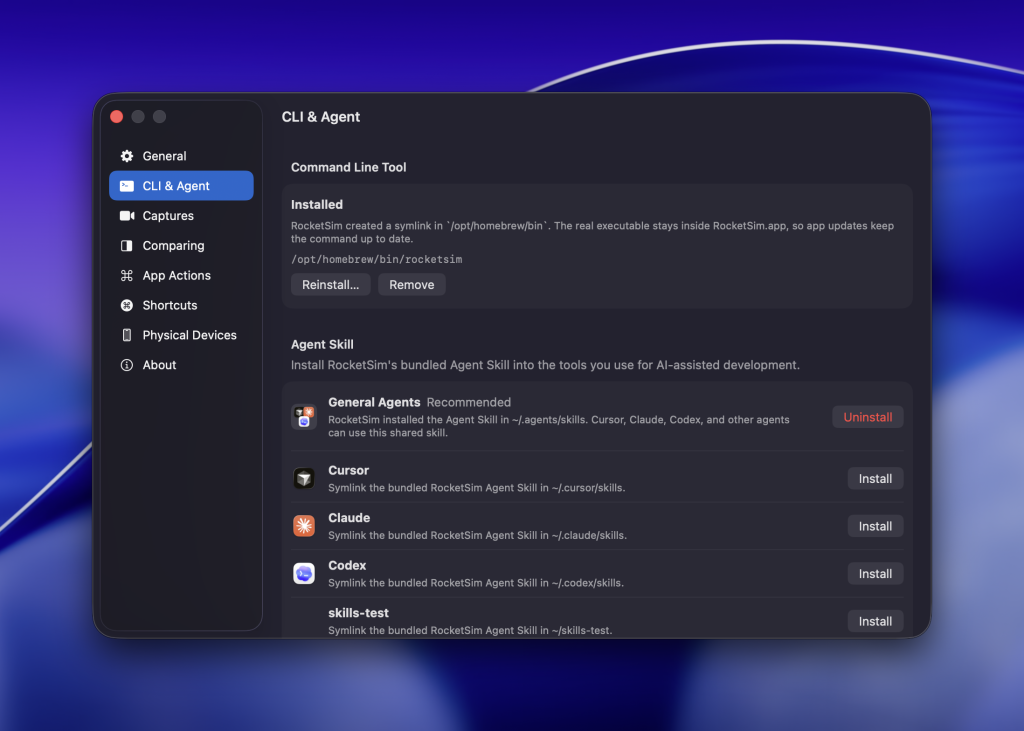
Inside the Settings, navigate to CLI & Agent. This is the page where you can install both the CLI and the bundled Agent Skill:
Always up-to-date CLI and Agent Skill
Both CLI and Agent Skill will be symlinked up on installation. This means you will only have to install once and never look back. If you update RocketSim, you’ll also update both the CLI and Agent Skill, ensuring you always benefit from the best performance and latest features. Your agents will become smarter with every update and you don’t have to worry about keeping track of open-source updates.
A bundled Agent Skill
You’re always free to use the CLI directly by opening a terminal and starting with rocketsim --help to get started. However, it’s more efficient to let your Agent do so by asking it to use the bundled Agent Skill.
If you’re new to Agent Skills, I highly recommend reading Agent Skills explained: Replacing AGENTS.md with reusable AI knowledge.
The bundled Agent Skill is designed to work hand in hand with the CLI. It teaches your agent how to use RocketSim’s commands, when to request compact --agent output, and how to interpret the rs/1 protocol for reliable Simulator control. Humans can still use the CLI with readable output, but agents benefit from the smaller, structured responses that reduce token usage and include interaction feedback. The result is faster, more efficient automation for Xcode’s Simulator.
Using the Agent Skill with example prompts
Once RocketSim’s CLI is installed, your agent can use the bundled Agent Skill to understand how to inspect and control the active Simulator. Instead of memorizing commands yourself, you can describe the outcome you want, and the agent translates that into compact screen reads, taps, typing, scrolling, waiting, and verification steps through RocketSim.
The most effective prompts are specific about the app, the target screen, and the expected result. Think of them as tasks you would give to another developer sitting next to you: clear enough to act on, but not tied to brittle coordinates or implementation details.
Use /rocketsim to open Settings and navigate to General.Use /rocketsim to launch my app and complete the onboarding flow.Use /rocketsim to test the login flow with [email protected] and verify that the home screen appears.Use /rocketsim to open this deep link and confirm the correct screen is shown.Use /rocketsim to reproduce the bug where tapping Continue does not advance the checkout flow.Use /rocketsim to scroll the settings screen, enable notifications, and verify the toggle is on.Use /rocketsim to inspect the current screen and tell me which accessibility labels are missing or unclear.

Why RocketSim is fast for agents
RocketSim is not just a standalone command that starts from scratch every time. The CLI talks to the running Mac app, which can keep simulator state, reuse context between commands, and optimize repeated screen reads and interactions.
The CLI uses RocketSim’s rs/1 protocol for agent workflows. You do not need to learn the protocol details; it is the compact, agent-optimized layer that lets RocketSim provide reliable screen reads, interaction feedback, and recovery paths while keeping output small.
In our internal research, RocketSim’s CLI completed the same agent workflows about 19% faster, avoided wrong taps entirely, and used about 63% fewer estimated tokens than a popular alternative.
A better understand of our internal research
Now, I fully understand it’s easy to say we’re faster and using fewer tokens. I think it’s good to start with a quote from one of the early beta testers:
I just tried and eeeee oh my god. It used almost noooo tokkkeeeens, and I am on GPT-5.5 medium, which has been burning my limits — Eslam, Working at Framna
That’s not saying anything about our research, but it does confirm the outcome.
We compared RocketSim against a popular open-source Xcode Simulator automation alternative using a repeatable benchmark suite, not a polished happy-path demo. Each tool ran the same prompts across iOS system apps and a custom fixture app built specifically to stress agent workflows: nested navigation, duplicate labels, off-screen elements, visual-only targets, stale screen recovery, and a web login inside a WKWebView.
For every run, we recorded wall time, command output size, estimated token usage, wrong taps, unexpected failures, and recovery behavior. That gave us a practical view of what matters for agents: how much context they need, whether they tap the right thing, and how well they recover when the simulator state changes underneath them.
Here are a few of the scenarios:
S1 - Open Settings and navigate to General
S2 - Open Apple Account sign-in and type an email
S3 - Navigate to an accessibility setting and toggle a switch
S4 - Scroll Settings to an off-screen row and open it
S5 - Recover after the screen changes outside the agent's control

A1 - Navigate nested content: Files -> Team Docs -> Quarterly Plan
A2 - Choose the right action among duplicate Continue buttons
A3 - Tap a visual-only photo target
A4 - Complete a WKWebView login flow
A5 - Move from native UI into web auth and verify native state afterward
Each line represents a prompt-style task we gave to the agent during the benchmark. For example, we would ask the agent:
Use
/rocketsimto open Settings and navigate to General
Note that we’re mentioning /rocketsim to ensure the bundled Agent Skill is used. For comparison, we also used the Agent Skill for the open-source alternative to make the comparison as close as possible.
A more complete Accessibility Tree
Many available tools rely heavily on Facebook’s IDB. It provides a quick way to fetch accessibility elements from the Simulator, but it’s also limited. Yes, we rely on it too, but we developed our own layer on top of it. We’re experts in Xcode’s Simulator and have been developing our own tools for years, so we’ve also improved our accessibility layer.
You might have experienced this in our VoiceOver Overlay; there’s nothing like that available elsewhere. Unlike many open-source tools, we do return insights into webviews, toolbars, and other complex elements. This results in RocketSim doing a better job of helping agents complete their tasks. Fewer wrong guesses mean fewer tokens used, and more context for you to complete your feature.
Sandboxed and Enterprise-Ready
Our app is sandboxed by design and available in the Mac App Store. We also distribute out of the App Store (still sandboxed) for enterprise customers. This makes our AI solution perfect for teams that must comply with stricter security measures. You can start a free 14-day trial at any time.
Conclusion
Get started today by installing RocketSim for free and learn more in our documentation:
And let us know what you think. We’re just getting started, and we’d love to get your direct feedback. Feel free to open a feature request at any time.
Enjoy!