

Xcode disk space can grow rapidly without you noticing. Especially these days, with multiple agents turning multiple worktrees into silent disk space occupiers. Where I used to only focus on deleting old Simulators every now and then, I’m now also actively managing worktrees and derived data folders. There are great Mac apps and open-source projects for solving disk space, but I needed something more automatic.
That’s why I created a new open-source Xcode Disk Cleanup Agent Skill. It’s easy to invoke, can be automatically called by any agent when it detects low storage, and will never delete anything without explicit approval. By searching common paths with scripts that turn the results into structured data, your token usage will be low, and the time spent managing storage will be optimal. Let’s dive in!

Why Xcode consumes so much disk space
Xcode stores generated data across several locations on your Mac, filling your disk space. Some files improve build performance, while others support debugging, testing, or distribution.
Common storage consumers include:
- Derived Data containing build products and indexes
- Simulator devices and downloaded runtimes
- Archives and their matching dSYMs
- DeviceSupport symbols for connected devices
- Downloaded Xcode installers and older Xcode versions
- Documentation, diagnostic logs, and CocoaPods caches
- Project-specific
.buildand.derived-datafolders
The introduction of agentic development has increased the impact. I often run multiple agents using separate Git worktrees, each of which can create its own build artifacts. I described this workflow in more detail in my article covering the lessons I learned after using AI agents full-time. Working with multiple agents helps me progress faster, but it also makes automated storage management more valuable.
New Xcode betas are fun too. I often find large .xip files or old Xcode betas in my Downloads folder, oops. And yes, I’m using Xcodes, but I should use it more often! Either way, it’s clear that we have to deal with storage even more now that we perform more work in parallel.
Installing the Xcode Disk Space Cleanup Agent Skill
I can explain how to delete everything manually or install a few open-source Mac apps, but I’m here to help you automate the cleanup with agents. As introduced earlier, I’d love for you to explore my new open-source Agent Skill. You can learn more about how skills work in my article Agent Skills explained: Replacing AGENTS.md with reusable AI knowledge.
The easiest way to install the skill is using the npx skills command-line tool:
npx skills add https://github.com/AvdLee/Xcode-Disk-Cleanup-Agent-Skill --skill xcode-disk-cleanupThe skill uses the open Agent Skills format and works with compatible tools like Cursor, Claude Code, and Codex.
You can invoke it with a prompt such as:
Use the Xcode disk cleanup skill and show me how many GB I can safely recover.
Your agent should always start with a read-only audit. Asking it to “clean Xcode” never counts as permission to delete files.
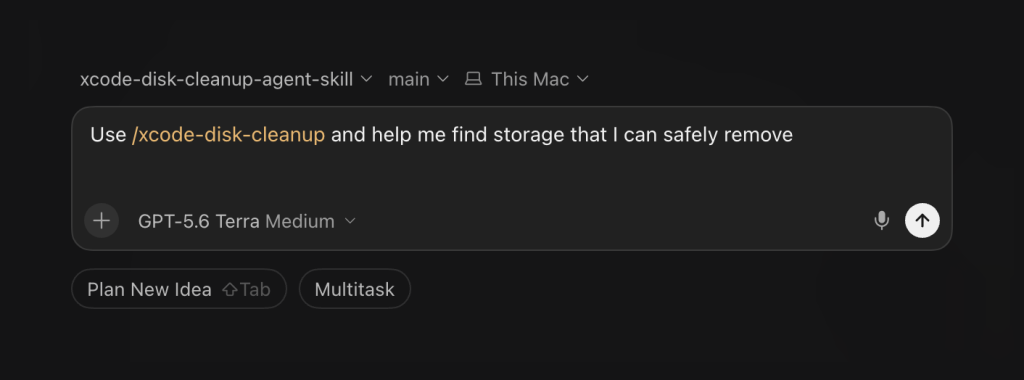
The above screenshot shows a perfect example of how you can invoke the Agent Skill. I’m using Cursor in this example, but you can use any IDE you prefer. Once again, nothing will be removed without your explicit approval.
What does the agent skill check?
The skill audits the locations where Xcode commonly accumulates disk space:
- Derived Data: Missing workspaces, package-only folders, and approved project-specific directories
- Project build folders: Local
.buildand.derived-datafolders inside selected source roots - Simulators: Available and unavailable devices, SwiftUI Preview devices, runtimes, orphaned volumes, dyld caches, and XCTest clones
- Archives and dSYMs: Distributed builds, never-distributed archives, and newer replacement archives
- DeviceSupport: Symbols for iOS, watchOS, tvOS, and visionOS versions
- Xcode installations: Downloaded
.xip,.dmg, and.zipinstallers alongside installed Xcode versions - Additional caches: CocoaPods downloads, documentation, legacy DocSets, diagnostic logs, and Xcode-managed components
The audit returns the exact path or Simulator identifier, measured size, risk level, supporting evidence, and regeneration cost for every candidate. This allows you to manually open a certain file or folder and inspect it before deletion.
In one audit on my Mac, the skill found 126 candidates representing around 40.9 GiB of actionable storage. That number is specific to my machine and does not guarantee the same result for yours. What’s nice is that AI tools can convert it into a easy to digest canvas, like Cursor did in this example:
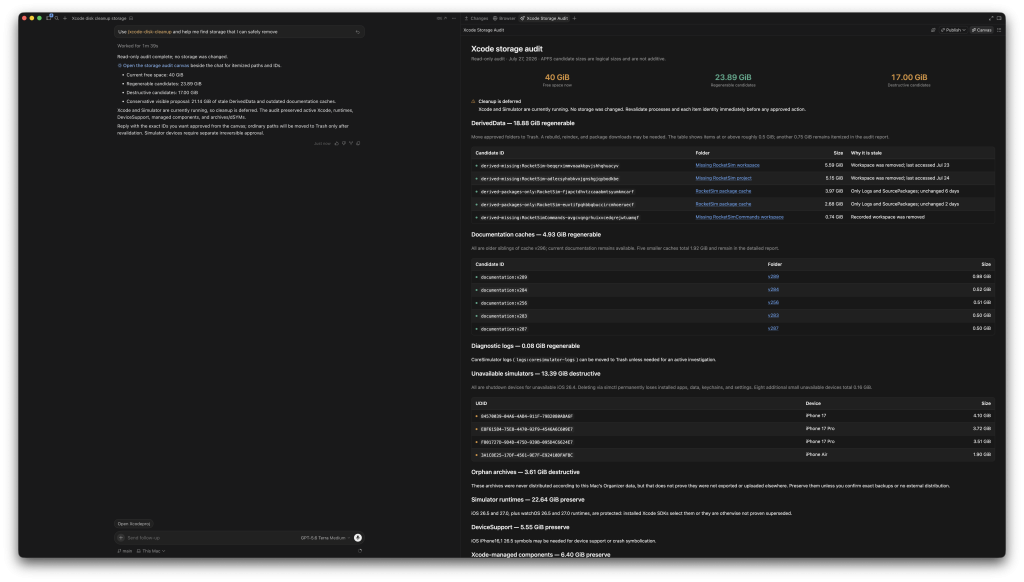
The reported candidate sizes are not necessarily equal to the disk space you will recover. APFS clones, shared volumes, snapshots, and files moved to Trash can all affect the final result. Therefore, the skill measures your actual available disk space again after cleanup.
Why you should audit before deleting
Many Xcode cleanup guides recommend deleting the complete Derived Data directory:
rm -rf ~/Library/Developer/Xcode/DerivedDataThe folder is regenerable, but deleting everything still costs something. Every project needs to rebuild, reindex, and possibly download package dependencies again.
I prefer removing Derived Data only for projects that no longer exist or those I explicitly want to rebuild. You can learn more about this folder in my article covering common Xcode Derived Data mistakes.
The same nuance applies to Simulator devices. A device contains installed apps, app data, settings, and test state. A runtime is the shared operating system image used by one or more devices. Deleting the wrong layer can result in unnecessary downloads or permanently lost test data.
The agent skill understands these differences and uses supported tools such as xcrun simctl for Simulator cleanup. It does not manually delete system-managed CoreSimulator directories or ask you to disable System Integrity Protection (I hate it when I see this recommendation, ha!).
Applying my experience since 2009
I’ve been building apps since 2009 and cleaned up plenty of Xcode installations along the way. Most available solutions only cover part of the problem.
Some tools delete old Simulators but ignore Derived Data. Others clear caches without checking whether active projects still depend on them. Project-local build folders and worktree-specific Derived Data are often not considered at all.
Archives are another good example. I regularly create an archive only to discover that it’s invalid. I fix the issue, create a new archive, and leave the previous one behind.
However, deleting all old archives would be irresponsible. A distributed archive contains the exact binary and matching dSYMs required to symbolicate crashes. Rebuilding the same source code does not produce interchangeable dSYMs. That’s why it creates an itch that I don’t like: deleting old archives. I always feel like I might still need them in the future.
The skill therefore separates archives into several groups:
- Distributed archives are preserved
- The newest undistributed archive is preserved
- An undistributed archive is only proposed for cleanup when a newer archive of the same app exists
- Archives with uncertain distribution or backup status are preserved
This conservative approach reflects how I would clean my own machine. The goal is not to report the highest possible number of recoverable gigabytes. The goal is to identify storage you can remove based on evidence and clear consequences. This way, I keep the archives I feel like I might need in the future while still cleaning up archives I no longer need. Btw, archives can be small or big depending on your app, but many archives together can still add up in related Xcode disk space.
An agentic alternative to DevCleaner
I previously recommended DevCleaner for Xcode as an easy way to find old developer files. It remains a useful Mac app, and I definitely recommend checking it out if you prefer an IDE. However, an Agent Skill can take the workflow further.
An agent can gather the context required to make a more informed proposal. It can check whether a workspace still exists, whether an archive was distributed, which Xcode version is currently selected, and whether an installed SDK still requires a Simulator runtime.
The skill also treats cleanup as a conversation. You receive a list of candidates and approve exact IDs instead of selecting a broad category like “old Xcode files.”
Ordinary files move to the Trash by default. Simulator operations require separate irreversible approval, and active builds or running Simulators prevent cleanup until they finish.
This workflow becomes increasingly useful with agentic development. The more agents and worktrees I use, the less realistic it becomes to keep track of generated storage myself. In fact, I don’t want to constantly do it myself and find ways to automate things.
Keeping the audit token-efficient
An agent could inspect every directory using dozens of Terminal commands. That would consume context, produce inconsistent output, and leave more room for incorrect conclusions.
The Xcode Disk Cleanup Agent Skill includes a deterministic Python script that performs the complete audit. It returns compact structured JSON alongside a readable Markdown report. This approach is more token-efficient because the agent reasons over a single consistent result instead of processing raw output from many commands. The structured output includes stable candidate IDs, sizes, evidence, risk levels, and path fingerprints.
The script checks the path identity again immediately before cleanup. If a directory changed after the audit, the approval expires, and the agent refuses to delete it.
Automatically detecting low storage
Agent Skills do not always require manual invocation. Their descriptions help compatible agents recognize when they are relevant. For example, an agent may encounter a build or download failure caused by low storage. If the Xcode Disk Cleanup Agent Skill is installed, it can automatically run the read-only audit and show you the available options.
It still cannot delete anything automatically. The agent must present the current candidates and wait for your itemized approval. I deliberately chose this for our own safety, as the last thing you want is an agent that starts to delete all kinds of things. And honestly, this agent skill gives me even more trust, because I have seen agents delete Derived Data folders before without my approval. Now, they at least know how to evaluate these folders.
This behavior becomes increasingly valuable as agents take on longer-running development tasks. A build agent can detect that storage is becoming a problem, investigate the cause, and ask for approval without abandoning its original task.
Approving the cleanup
After reviewing the report, you can approve individual candidate IDs:
Approve the missing-workspace Derived Data candidates and the unavailable Simulator devices.
The agent applies only the IDs you approved. It revalidates each path, checks for running Xcode and Simulator processes, and refuses candidates whose identity or usage has changed.
Simulator devices and runtimes require an additional confirmation because those operations are irreversible. Ordinary files move to the Trash, allowing you to inspect or restore them before permanently reclaiming the space.
For example, here I’m asking to cleanup the documentation caches that are no longer needed:
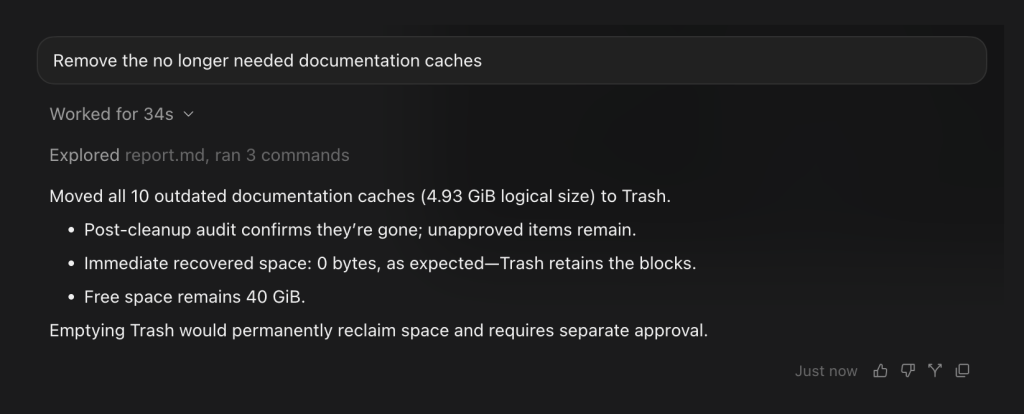
Finally, the agent runs the audit again and compares your available disk space before and after cleanup. It also mentions you still need to empty the trash, which feels extra safe: you can always revert the deletion.
Frequently Asked Questions
Regarding restoring disk space, a few common questions will likely come up. Here’s a list of commonly asked questions that I’d love to answer.
Derived Data contains regenerable build products, indexes, logs, and package checkouts. Deleting it does not remove your source code, but your projects will need to rebuild, reindex, and possibly download dependencies again. I prefer removing data for stale or specific projects instead of routinely deleting everything.
You can remove runtimes you no longer need, but each one can require a multi-gigabyte download if you need it again. The skill only proposes a stale runtime when it is deletable, no installed Xcode SDK requires it, and a newer runtime supersedes it.
Distributed archives and their dSYMs are preserved by default. The skill only proposes a never-distributed archive when a newer archive of the same app exists. Anything with uncertain distribution or backup status remains untouched.
Not necessarily. Deleting build caches can make the next build slower. The skill deliberately excludes shared compiler and SwiftPM caches that would quickly regenerate and slow down active development.
Conclusion
Xcode disk space cleanup is more complex than deleting a few cache directories. Derived Data may be regenerable, but archives, Simulator state, and DeviceSupport files require more context. The Xcode Disk Cleanup Agent Skill applies that context through an audit-first workflow. It measures every candidate, explains the consequences, and deletes only the exact items you approve.
Install the skill and ask your agent how much Xcode storage you can safely recover. Feel free to contact me or tweet me on Twitter if you have any additional tips or feedback.
Thanks!