
Testing iOS Time Zones is a typical validation path that’s difficult without actually traveling yourself. You can apply all kinds of protocols and mock versions of your app, but having iOS act like it’s actually traveling between time zones is a real challenge. Ideally, you’d test apps like travel apps in such a way that it mimics a traveler who steps into a plane within one timezone, and steps out in another.
Xcode’s Simulator can launch your app in another time zone, but it won’t fully mimic a device traveling between zones. The Simulator remains tied to macOS for system behavior, while a physical device can automatically update its actual system time zone based on location. I’ve been developing RocketSim since 2019 and have tried to enable this workflow several times. With Xcode 27, I’ve finally found a way.

Testing another time zone on iPhone
RocketSim allows you to simulate a location on a physical iPhone or iPad connected over USB. When you move the device to another simulated location, iOS can automatically update its system time zone accordingly. Like in the above video, where my personal device switches its system time zone, which changes the displayed local time, enables a different focus mode due to it, and enables driving mode due to thinking that it actually drives.
Another example: You can start in Amsterdam, launch your app, and simulate traveling to New York. Your device will eventually switch from Central European Time to Eastern Time, allowing you to validate how your app responds.
This workflow for iOS time zone testing requires:
- RocketSim 16.4 or newer
- Xcode 27
- A physical iPhone or iPad connected over USB
- Developer Mode enabled on the device
- An app launched on the device from Xcode
At the time of writing, Xcode 27 is still in beta. Physical-device location simulation relies on the new device controlling capabilities and is unavailable in earlier Xcode versions.
Enabling automatic time-zone changes
RocketSim does not directly change your device’s time zone. Instead, it simulates a location through Xcode. iOS then uses that coordinate to determine the matching system time zone.
You need to enable two settings for iOS time zone testing to work:
- Open Settings → General → Date & Time and enable Set Automatically.
- Open Settings → Privacy & Security → Location Services → System Services and enable Setting Time Zone.
These settings allow iOS to derive the system time zone from the simulated location. Without them, your app will receive the new coordinates while the device remains in its existing time zone.
You might expect the time zone to update immediately, but that’s not always the case. iOS controls the update and can take a short while to apply the new zone.
Simulating a new location
Start by running your app on the connected device from Xcode. RocketSim will add the build to the Recent Builds section next to your physical-device preview.
Select your app and open the Locations tab. From there, you can:
- Select a coordinate from the map
- Run a built-in location scenario
- Activate a saved location
- Simulate a car or walking route
- Reset the device to its actual location
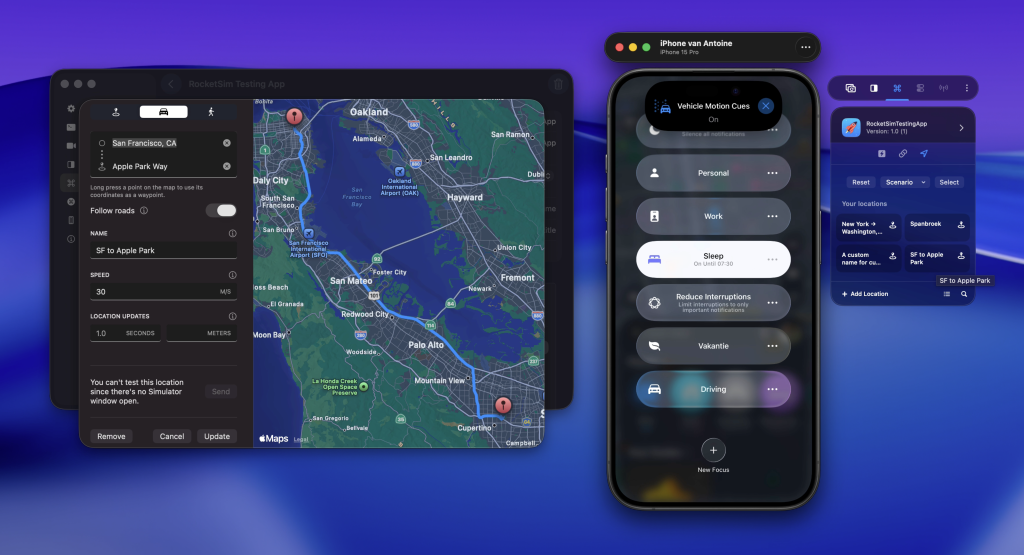
In the above screenshot, I’m simulating a route from SF to Apple Park. Since I’m normally in the Amsterdam time zone, my iPhone turns on Sleep Focus mode. It also enables Vehicle Motion Cues by detecting the driving mode.
Or imagine testing a travel app that shows local departure and arrival times. You could save Amsterdam Airport and John F. Kennedy International Airport as location actions and switch between them whenever you need to validate the flow.
RocketSim sends the simulated coordinates through Xcode’s physical-device location service. iOS receives those coordinates as if the device were actually at that location and can update its system time zone in response.
Responding to time-zone changes
A time-zone change does not necessarily restart your app. If your interface needs to update while running, use TimeZone.autoupdatingCurrent:
let timeZone = TimeZone.autoupdatingCurrent
print(timeZone.identifier)
Unlike a cached TimeZone.current value, the automatically updating variant tracks changes made by the system.
You can also observe NSSystemTimeZoneDidChange when visible content needs to refresh:
Task { @MainActor in
    for await _ in NotificationCenter.default.notifications(
        named: .NSSystemTimeZoneDidChange
    ) {
        // Refresh time-zone-dependent UI.
    }
}
For example, a calendar app could reload its timeline, while a travel app might recalculate the local arrival time.
However, responding to the notification is only part of the test. You’ll also want to terminate and relaunch your app after switching zones. Date formatters, calendars, and time-zone values are often cached during launch, which can result in bugs that only appear after restarting the process.
What you can validate
Location simulation lets you validate how your app responds when iOS changes its system time zone. The actual moment in time remains unchanged, but its local representation can move several hours forward or backward.
I recommend validating:
- Whether visible dates and times refresh automatically
- Whether the same
Dateappears correctly in another time zone - Calendar events and booking times shown in local time
- Relative labels such as “today” and “tomorrow,” when the selected zones cross a date boundary
- Cached
Calendar,DateFormatter, andTimeZonevalues - Behavior while the app is running and after a cold launch
You cannot configure a specific date or time using this workflow. Therefore, scenarios such as daylight-saving transitions, a precise midnight crossing, or scheduled notification delivery still require mocks, injected clocks, or dedicated automated tests.
Restoring the actual time zone
Press Reset in RocketSim’s Locations tab when you’re done testing. The device will return to its real location, after which iOS should restore the corresponding system time zone. Once again, it can take some time for the system to pick this up. Turning airplane mode on and off on your physical device can speed up the process if needed.
The time-zone change can lag behind the location reset. Keep the device connected and confirm that both automatic settings remain enabled while iOS reevaluates the location.
Conclusion
Testing an iOS app in different time zones usually requires mocks, manual settings changes, or actual travel. RocketSim 16.4 and Xcode 27 allow you to reproduce location-driven system time-zone behavior using a physical iPhone connected over USB.
You can simulate traveling between locations, observe automatic system time-zone changes, and verify how your app responds both while running and after a cold launch. Combined with unit tests, this workflow helps uncover date-related bugs before your users encounter them abroad.
If you want to improve your location-testing workflow even further, check out my article on Location Simulation in Xcode’s Simulator.
Feel free to contact me or tweet me on Twitter if you have any additional tips or feedback.
Thanks!