

Command-click no longer jumps to definition by default since Xcode 9 is introduced. It opens up a handy menu instead with a lot of options for quick editing, like:
- See all callers
- Edit all in scope and renaming
- Extracting methods
The old command-click behaviour can be restored in the settings or simply mimicked by using
control+command+clickRun cloud agents with Xcode on real Apple SiliconXcloud gives your cloud agents their own macOS environment, complete with your Xcode version, SDKs, and dependencies. They can edit, build, and test iOS or macOS apps while Xcloud handles the infrastructure. Learn more.
Navigating through callers
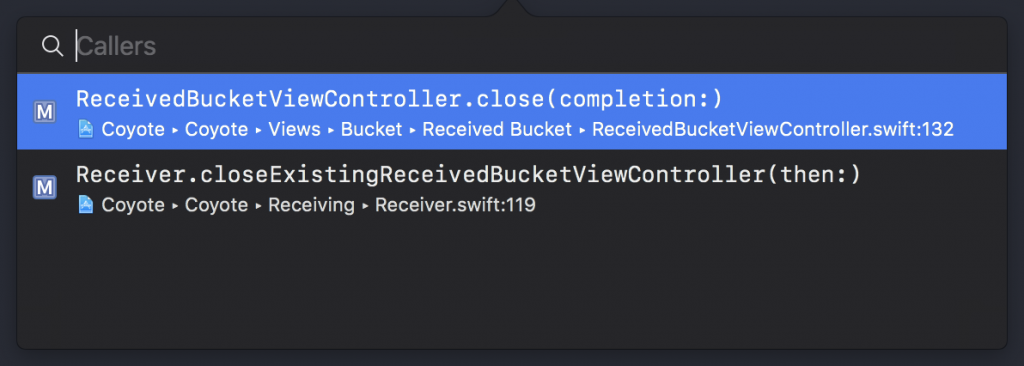
This option allows us to see all callers for a method or parameter. This can be handy to find out if a method or property is used and which dependencies it has.

Edit all in scope and renaming

Quickly rename a method or parameter together with all its definitions within the same file. Refactoring the definition throughout the whole project can be achieved with the Refactor->Rename option in the right-click menu.
Extracting methods
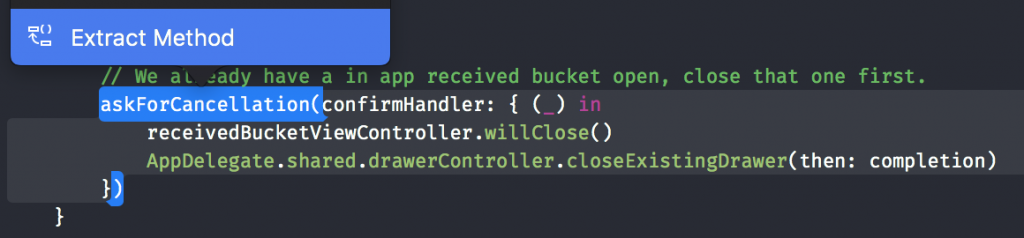
Extracting methods is a great way of refactoring code. By command-clicking a bundle of code, we enable this refactoring method which extracts the piece of code into a new separated method.
A more detailed look into refactoring in Xcode can be read at the official Swift blog: Swift Local Refactoring.
Restoring the old behaviour
The new behaviour is for some of us just something they can’t get used to. You can restore this old behaviour by going to the navigation settings page in Xcode.
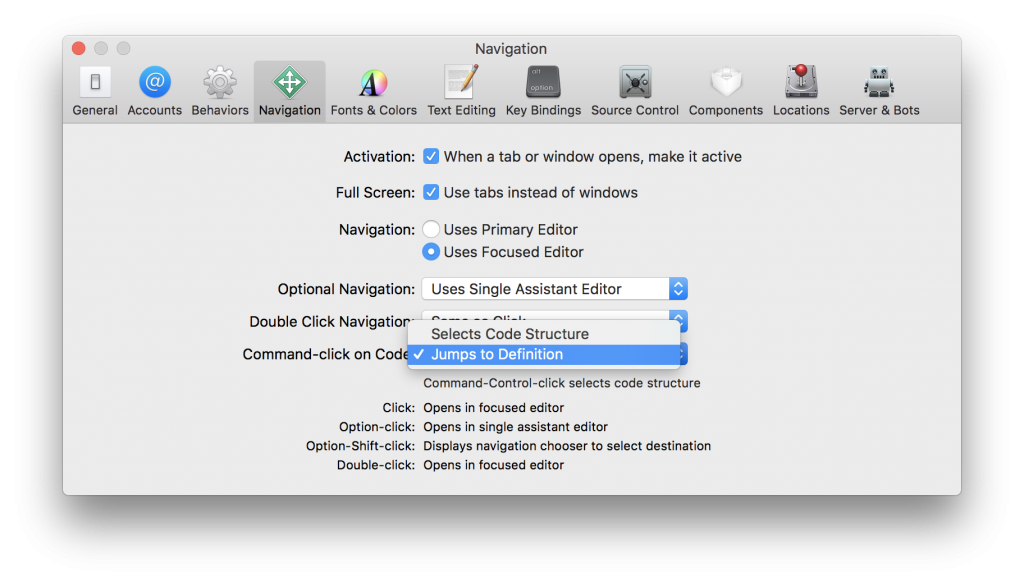
If we like to use the menu in some cases we can simply use the key combination of control + command + click to directly jump to the definition.