

SwiftUI performance problems often come down to views that redraw too often or take too long to run their body. Before you can fix them, you need to find out which views are responsible and what triggers their updates. Xcode Instruments can show you exactly that, as long as you know where to look.
In this article, I’ll show you how to find SwiftUI redraws and their cost in Xcode Instruments. You’ll record the SwiftUI template, read the SwiftUI track, and use the View Body Updates views to see which view updates how often, how long each update takes, and what caused it. If you’ve used Self._printChanges() before, Instruments is the next step when you need to measure what those redraws actually cost.

Record the SwiftUI template
Start with Product → Profile (⌘I) in Xcode and choose the SwiftUI template. Profiling builds your app with the Release configuration by default, which is what you want. Debug builds skew your measurements, as they don’t run the code your users run.
The template combines the SwiftUI instrument with Time Profiler and the Hangs and Hitches instruments. That combination is useful, as it lets you check whether SwiftUI work lines up with hangs and hitches.
Record one focused interaction that shows the symptom, like opening a screen or scrolling a list. A short, targeted recording is easier to read than a long tour through your app. On top of that, Instruments takes longer to process when your recording is longer. A longer recording means more data, after all.
In this article, I’m using the RocketTrace Slow Lab. This is an intentionally slow SwiftUI app that I use to test RocketTrace, and one of its workloads publishes 600 state changes at roughly 60 Hz: a great way to show bad signals in Instruments!
Read the SwiftUI track
After you stop the recording, Instruments shows the SwiftUI track at the top of the timeline.
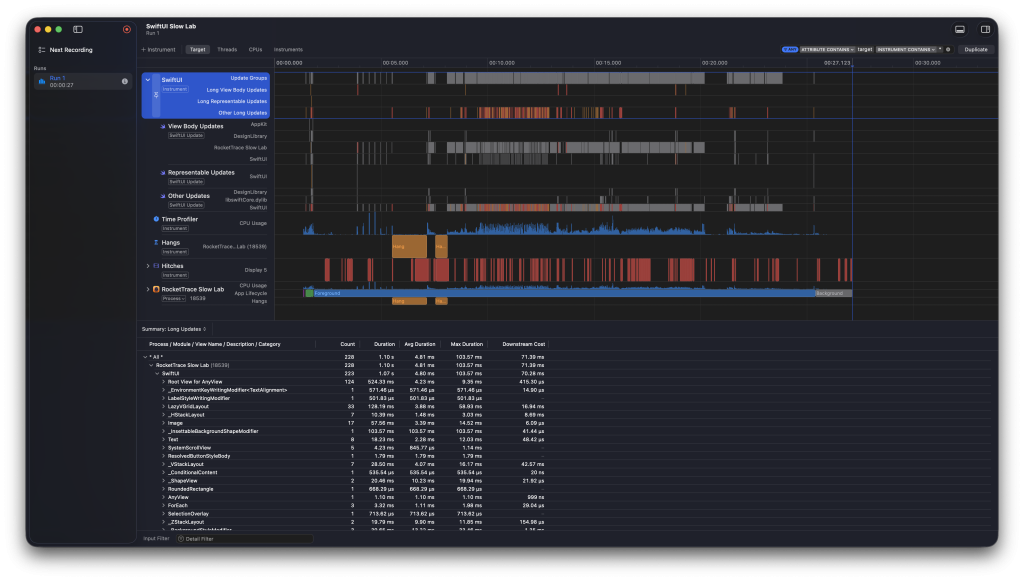
The first lane, Update Groups, shows when SwiftUI is doing work. According to Apple’s Optimize SwiftUI performance with Instruments session, an empty lane while your CPU usage spikes means the problem is likely outside of SwiftUI. Below it, you find three lanes for long updates: Long View Body Updates, Long Representable Updates, and Other Long Updates. Updates are shown in orange and red based on how likely they are to contribute to a hitch or a hang.
Once expanded, the SwiftUI track shows the same split in three subtracks: View Body Updates, Representable Updates, and Other Updates. In the screenshot above, the Hitches lane is full of red and there are two hangs, so it’s worth finding out how much of that comes from view body updates.
The summary at the bottom lists the long updates. In this 27-second recording, it shows 228 long updates that add up to 1.10 seconds. That’s a good starting point, but it only includes updates that Instruments considers long. A view that updates hundreds of times with a cheap body won’t stand out here.
Open the View Body Updates hierarchy
Select the View Body Updates track and drag over the part of the timeline you want to inspect. The detail view at the bottom now shows the view body updates in that range.
You can use ⌘3 and ⌘4 to switch between the View Body Updates View Hierarchy and the View Body Updates table. Let’s start with the hierarchy.
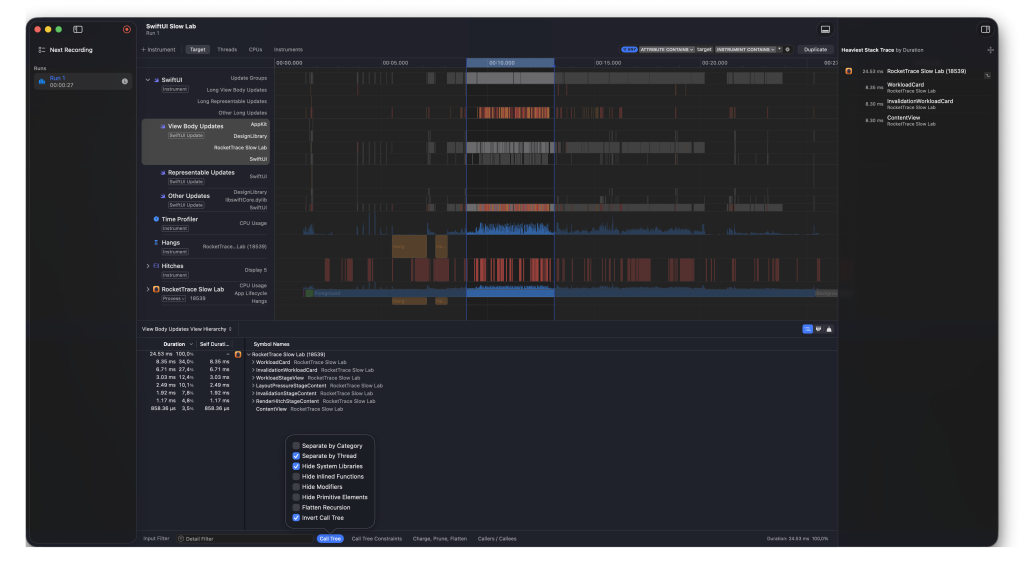
The hierarchy lists the views that ran their body within the selected range, together with the time they spent. In my selection, all view body updates together took 24.53 ms. WorkloadCard took 8.35 ms and InvalidationWorkloadCard 6.71 ms, which makes them the two most expensive views in that range.
The filter options at the bottom make a big difference here. Click Call Tree to open them. You’ll find:
- Separate by Category
- Separate by Thread
- Hide System Libraries
- Hide Inlined Functions
- Hide Modifiers
- Hide Primitive Elements
- Flatten Recursion
- Invert Call Tree
In the screenshot, I have Separate by Thread, Hide System Libraries, and Invert Call Tree enabled. Hiding system libraries leaves only the views from your own app, which is the list you want to start with. If the hierarchy is still too noisy, you can hide modifiers and primitive elements as well.
Find the redraw cost in the table
Press ⌘4 to switch to the View Body Updates table. This is where you see every individual update instead of the grouped totals.
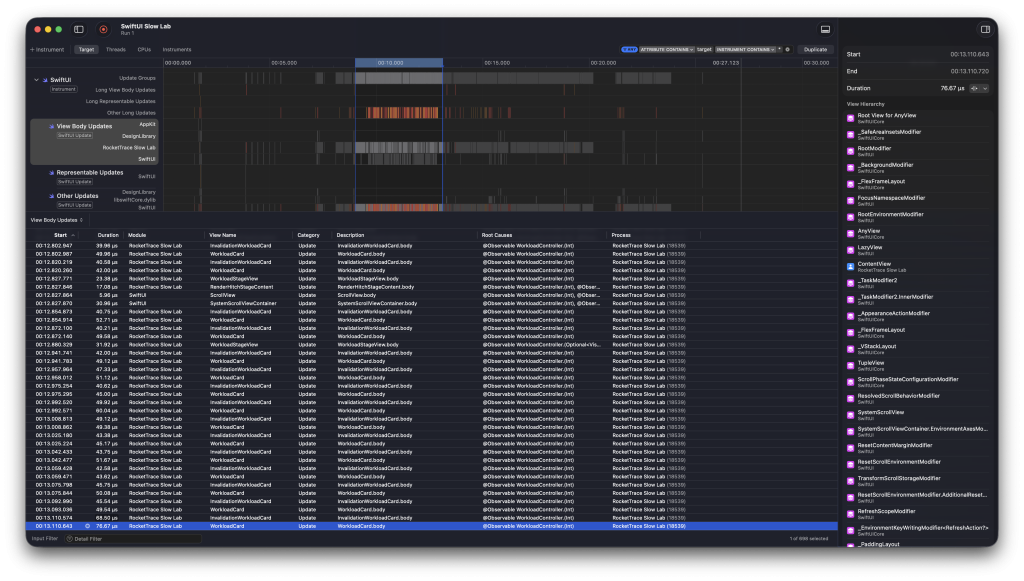
Each row is one body update, with columns for the start time, duration, module, view name, category, description, root causes, and process. In the screenshot, InvalidationWorkloadCard.body and WorkloadCard.body appear again and again, only milliseconds apart. Most of those updates take only around 40 to 50 µs.
That’s the important lesson in this table. A single update is cheap, but view bodies run on the main thread, so a lot of cheap updates still add up. You can only see that by looking at how often a view updates in combination with how long each update takes.
The Root Causes column tells you what triggered each update. For these rows, it shows @Observable WorkloadController.(Int). In other words, an Int property on an observable WorkloadController changed, and every view that read it ran its body again. If you select a row, the inspector on the right shows the start time, the duration, and the view hierarchy of that update.
Trace a redraw back to its cause
Root Causes gives you a quick answer, but sometimes you need more context. Apple’s Understanding and improving SwiftUI performance documentation explains how to open the cause-and-effect graph for an update group. Set the inspection range on the group, hold the pointer over an update, click the arrow that appears, and choose Show Causes. Blue nodes are objects from your own code, and gray nodes are defined by the system.
Compare what the graph shows with what you expect to happen in your UI. Apple lists two common reasons for too-frequent updates:
- A view observes an object with other properties, and updates when one of those other properties changes. Apple recommends migrating to the
@Observablemacro, which only tracks the properties a view reads. I explained the performance benefits in my article on the @Observable macro. - A view’s update causes the views it contains to update without any meaningful change in the UI.
For updates that are expensive instead of frequent, the fix is usually to move work out of body. Do the heavy work when the data changes, and let the view render the result.
After each change, record the same interaction again. That’s the only way to confirm that the update count or duration actually went down. If you want to read more about the other half of this workflow, take a look at my article on Xcode Instruments Time Profiler.
Why I stopped doing this by hand
Look back at the steps above. You record, expand the track, select a range, switch detail views with ⌘3 and ⌘4, toggle filter options, sort a table, and read root causes one update at a time. Then you change your code and do all of it again to verify the fix.
I find this really hard to do manually, and it takes a lot of time. You need to know what to look for, and the answer is spread over several lanes and views. That’s the reason I built RocketTrace.
Automate this with RocketTrace
RocketTrace is a Mac app that analyzes your Xcode Instruments recordings. You either record a build of your app from RocketTrace or import an existing trace, and it ranks what it finds by measured impact. Analysis runs locally on your Mac.
Instead of going through the lanes and tables yourself, RocketTrace checks your recording for seven SwiftUI patterns. You can read the details on the What RocketTrace Detects page, but in short they cover:
- Broad invalidation fan-out, where a single dependency invalidates many views
- State churn, where one property changes so often that it drives constant redraws
- Expensive view body updates, with their duration and a backtrace
- Redraws without a recorded value change
- Views that update on a steady cadence
- Your most expensive view
- Repeated runtime warnings
Each finding includes the measured evidence from the trace, so you can see right away which view updates the most or takes the longest. You still decide whether an update pattern is a bug or expected behavior for your UI. The SwiftUI findings guide explains how to read them.
You can copy a prompt for your coding agent from a finding, or let your agent run the whole flow. I wrote about that in Introducing RocketTrace: Using Xcode Instruments with AI Agents. If you want to understand the three patterns behind most redraw problems, the RocketTrace blog covers them in Debugging SwiftUI Redraws.
Conclusion
Finding SwiftUI redraws in Xcode Instruments comes down to a few steps: record the SwiftUI template, read the SwiftUI track, check the View Body Updates hierarchy and table, and follow the root cause back to the dependency that triggers the updates. It works, but it takes time to do by hand.
You can download RocketTrace for free, and your first three analyses with findings are included. Record the screen you’ve been suspicious about and see what it finds. If you want to improve your SwiftUI knowledge even more, check out the SwiftUI category page. Feel free to contact me or tweet me on Twitter if you have any additional tips or feedback.
Thanks!